Game pipelines care about logical size, hard edges, and matching sets. AniPixel can draft those assets from a style reference: Icon Pack for trays of items, Icon or Redraw for single sprites, then Fix Pixel Grid when you need the real grid or integer upscales.
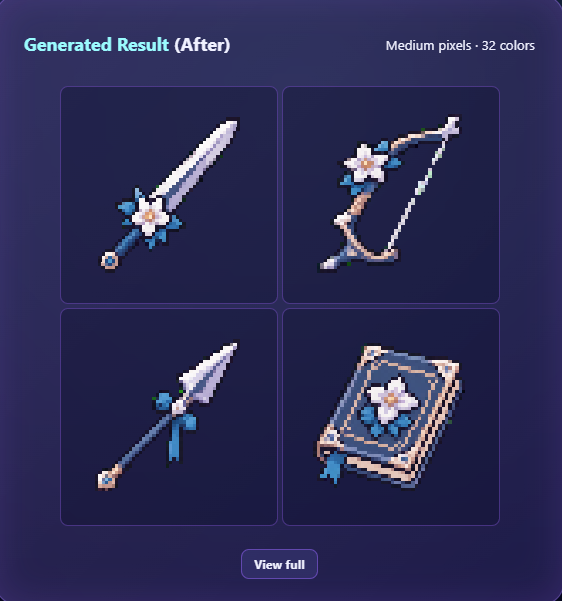
Pick the right entry point
| Need | Path | |------|------| | 4 or 16 matching item icons | Icon Pack (Icon preset, Pack on) | | One bold UI / skill icon | Icon preset, Pack off | | Character sprite draft | Redraw or Side, then cleanup | | True 32/64 file from a soft AI PNG | Fix Pixel Grid |
Item icon loop (fastest)
- Upload a style reference on Pixelize.
- Icon → Pack on → 64×64 (or 32 for a denser tray) → pick a category.
- Add short numbered item notes if you need specific objects.
- Generate (1 credit), download cells as logical PNGs.
- Drop into your engine or atlas. Prefer transparent backgrounds.
Character sprite draft loop
- Crop the character tightly; generate with Redraw (faithful) or Side (angle variety).
- Remove background if the sprite must float (Remove Background).
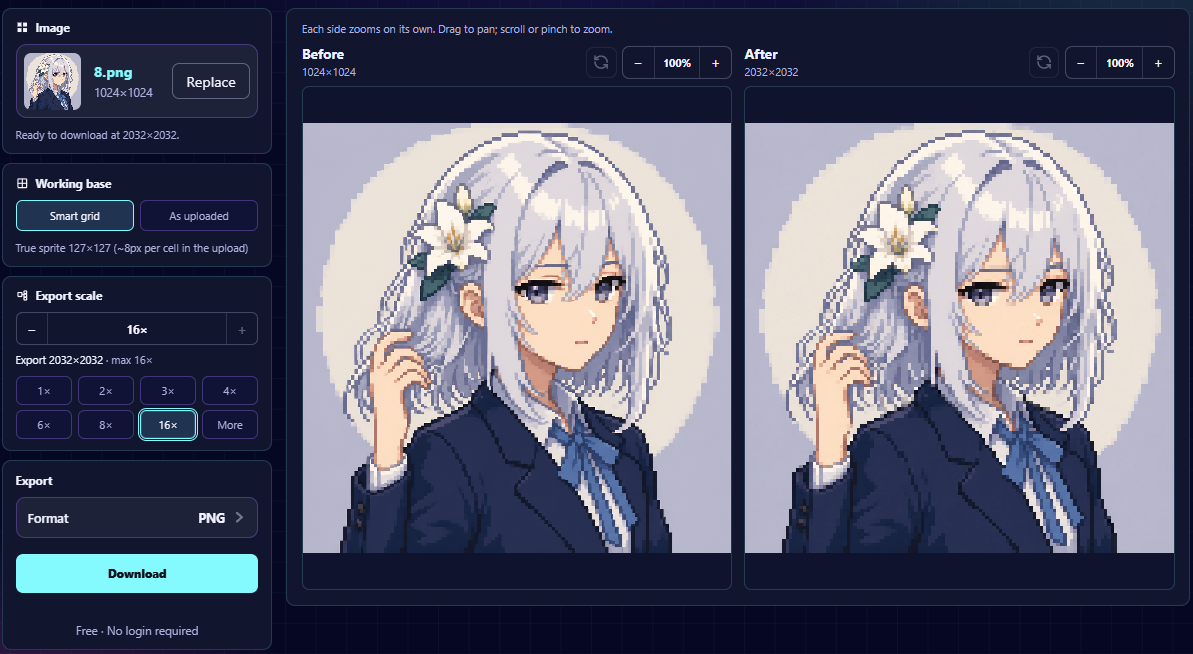
- Run Smart grid in Fix Pixel Grid, check Before/After, then export at 1× for the honest sprite or a higher integer scale for crisp display.
What AniPixel is not (for games)
- Not a full tileset / animation / palette-swap editor.
- Not a guarantee of exact logo or UI text reproduction—add critical marks in your pixel editor after.
- Not a replacement for hand-tuned collision boxes; treat outputs as drafts you may clean in Aseprite or similar.