People searching for “pixelate image online”, “image to pixel art”, or “convert photo to pixel art” often land on three different jobs. They look similar in a thumbnail. They are not the same product.
This page is the short authority map. For a product overview, see What AniPixel is. To run AniPixel’s path, open Pixelize.
The three paths at a glance
| Path | What actually happens | Good for | Not good for | |------|------------------------|----------|--------------| | AI redraw (AniPixel Pixelize) | A model reinterprets the image as pixel art: edges, color blocks, and silhouette are generated. Two runs can differ. | Playful avatars, posts, wallpapers, character-style looks | Locked production sprite sheets | | Classic mosaic / pixelate filter | The photo is divided into a grid and colors are averaged. Composition stays photographic; it only looks blocky. | Mechanical “blocky photo” effect, privacy blur of a region | A drawing that reads as crafted pixel art | | Hand-drawn / editor pipeline | You (or a studio tool like Aseprite) place pixels on a fixed grid and palette. | Game sprites, tiles, animation frames with exact sizes | Fast “make this anime still look pixel” experiments |
Quick pick: want a blocky photo → filter. Want a pixel-art style reinterpretation → Pixelize. Need shipping-accurate sprites → a dedicated pixel editor.
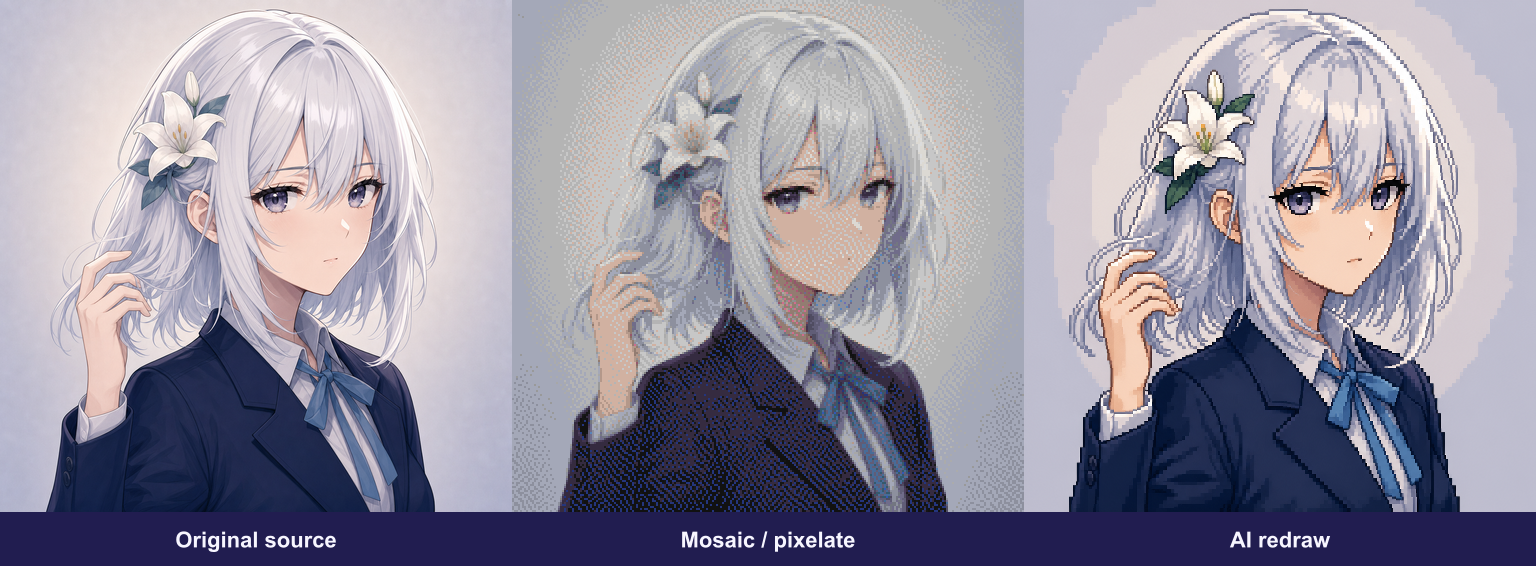
The middle panel stays photographic — only coarser cells. The right panel is a redraw: edges, color blocks, and silhouette were generated, not averaged from the source grid.
AI redraw is not “pixelate harder”
A mosaic filter never invents a new contour. It shrinks information into cells. Hair, eyes, and clothing stay in the same places; they just become bigger squares.
Pixelize does the opposite job people usually mean by “turn this into pixel art”: it redraws. Faces may simplify, outlines may thicken, and backgrounds may regroup into flat color. That is why results are not a guaranteed 1:1 copy of the source, and why a clearer source image helps more than uploading a huge file.
If a tool promises “online pixelate” and the output still looks like your photo with a grid on top, you are in the filter row — not the AI redraw row.
Where hand-drawn editors still win
Editors and studio pipelines win when you need:
- Exact canvas sizes (for example 32×32 or 64×64 tiles)
- Locked palettes and neighbor-color rules
- Frame-by-frame animation
- Batch sheets for a game engine
AniPixel is not that pipeline. Use Pixelize for direction and personal creative play; finish production assets in a real pixel editor when the project demands it. Free Fix Pixel Grid can recover a cleaner low-res grid from soft AI output, but it still does not replace hand polish.
How this maps to AniPixel
- Pixelize — AI redraw (1 credit per image).
- Remove Background — free local cutout after (or without) Pixelize.
- Fix Pixel Grid — free local grid recovery / integer upscale.
- Full cleanup path: generate → cutout → scale.
Common mix-ups
- “Pixelate” in app store names usually means the filter. Search language and product behavior diverge.
- Same brand name elsewhere may be a video or streaming site. AniPixel at anipixel.xyz only processes still images you upload.
- Identical outputs every time are a filter expectation. AI redraw can vary run to run.
Next step
Ready to try the redraw path? Start with Getting started with Pixelize, or jump straight to Pixelize.