Transparent PNGs are what stickers, emotes, and game sprites need. AniPixel gives you two clean paths: ask Pixelize for a transparent (or solid) background when you generate, or cut a finished PNG with the free Remove Background tool. This page is the export-focused checklist; the longer studio+cleanup story is in Pixelize then cleanup.
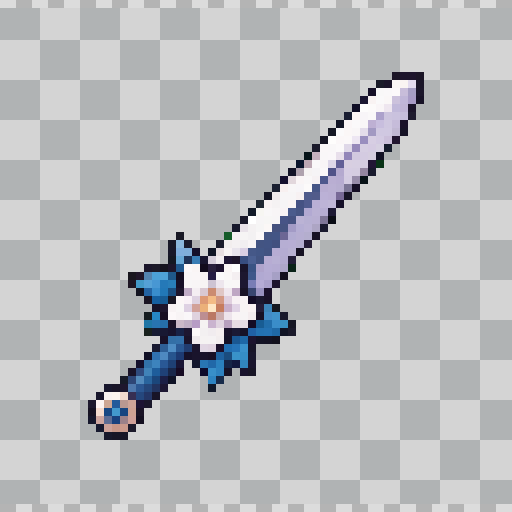
Path A — request transparency in Pixelize
- Open Pixelize, upload, pick a preset.
- Set background to Transparent when the control is available (Icon Pack also prefers Transparent or solid Color—Original is disabled for Pack).
- Generate and download. Inspect edges at 100% zoom.
- If a fringe remains, run Remove Background or regenerate with a simpler backdrop.
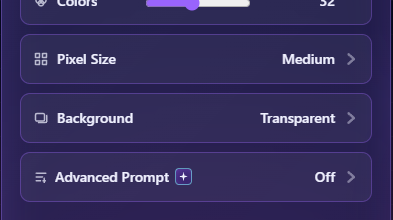
Path B — cut out after download
- Generate with whatever background looked best for the subject.
- Open Remove Background, upload the PNG.
- Preview the matte, export a transparent PNG.
- Optional: Fix Pixel Grid so scaling later stays nearest-neighbor clean.
Edge-quality checklist
- Zoom to 100%. Soft gray halos usually mean the cut still sees background color—retry remove-bg or regenerate.
- Single-pixel outline gaps are normal for chunky pixel art; do not over-smooth in a photo editor.
- For Icon Pack cells, download the logical-size PNG from Results; those are already snapped for sprite use (Icon Pack).
Where transparent exports go next
- Stickers → Pixel art stickers
- Chat emotes → Discord pixel emotes
- Game icons / sprites → Pixel art game sprites
Avoid flattening to JPG if you need alpha. Keep PNG (or another alpha-capable format your pipeline accepts).