Direct answers to the questions people actually ask, grouped by topic. Every answer links to the guide that goes deeper.
What is AniPixel?
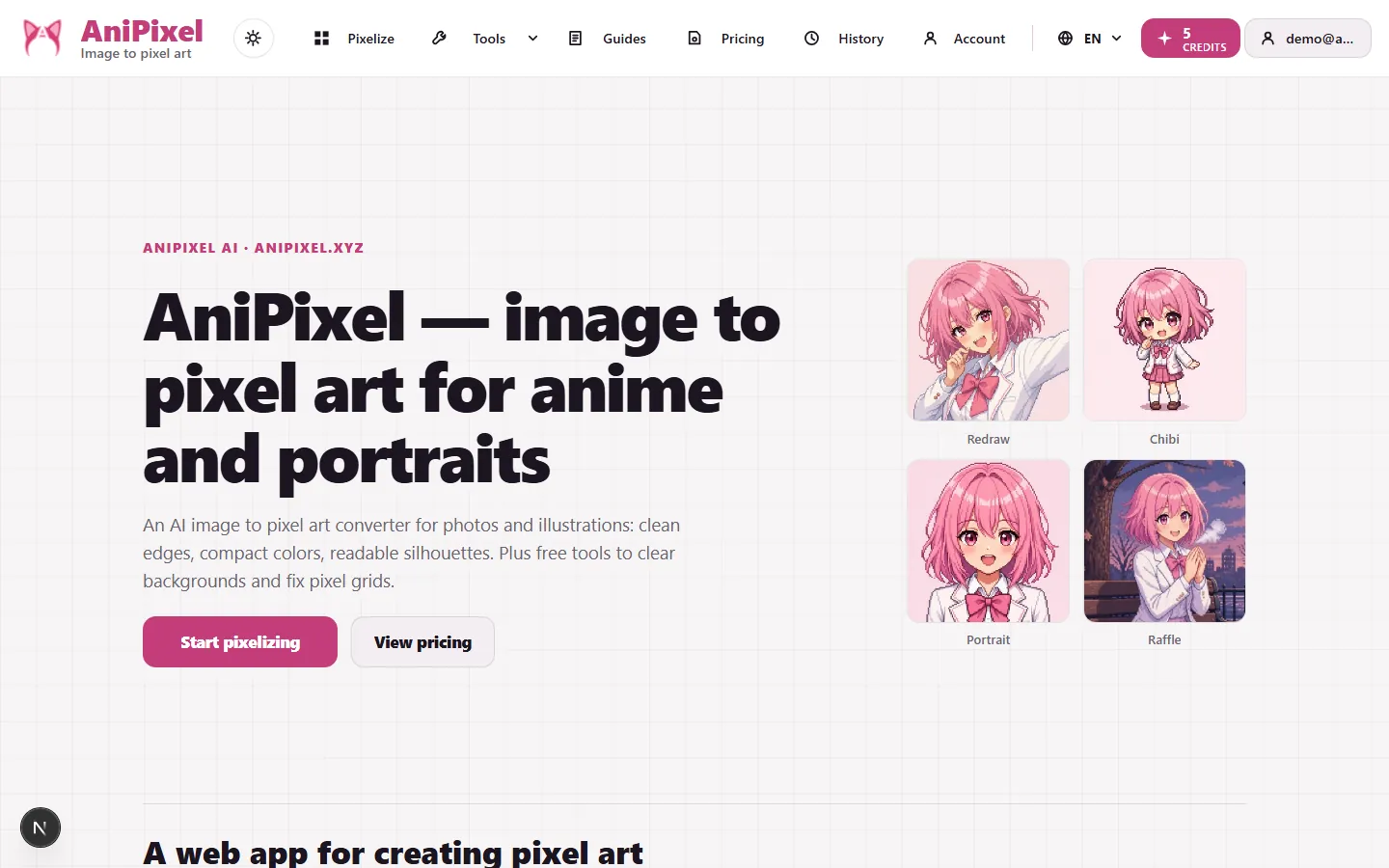
AniPixel is a web app that turns images into pixel art with AI, with an anime-style focus. You upload an image, pick a preset on Pixelize, generate, and download a PNG. Alongside the AI generator there are two free browser tools — Remove Background and Pixel Art Scaler — that need no credits and no account. Plain-language overview: What AniPixel is.
Is AniPixel a filter or real AI generation?
Real AI generation. Pixelize redraws your image as pixel art, which is why results come out with clean edges and compact colors, and also why small details can shift so two generations from the same source differ. If you want a faithful conversion, the Redraw preset stays closest to the source — see Pixelize presets.
How is this different from Photoshop pixelate?
Photoshop-style pixelate downsamples and averages colors on a grid: the photo structure stays, it just looks blocky. AniPixel’s Pixelize redraws the image as pixel art, so silhouettes, edges, and color blocks come out game-style rather than photographic. Both are ways to turn an image into pixels — pick blocks when you want the same photo chunkier, pick Pixelize when you want it to read like pixel art. More context in What AniPixel is.
Can I pixelate an image online with AniPixel?
Yes — the free Pixelate tool does classic blocky pixelation locally in your browser, no sign-in or credits. And if what you actually want is a picture that looks like pixel art rather than a blocky photo, Pixelize redraws it with AI. See What AniPixel is for how the two paths differ.
How do I convert an image to pixel art?
Open Pixelize, upload a JPG, PNG, or WEBP up to 20MB, start with the Redraw preset and defaults, generate, then download the PNG. Full walkthrough with screenshots: How to turn an image into pixel art.
Do I get free credits?
Yes. New accounts receive 5 free credits at signup, enough to try several generations before deciding whether to pay anything. Details in manage your account.
How do credits work?
Requesting more variations consumes more credits, and Quality (Low / Medium / High) affects consumption. Subscriptions and one-time packs are on Pricing; details in Plans, credit packs, and when you need VIP.
What happens if a generation fails?
The credit for that image is refunded automatically. You only pay for results that were actually produced.
What file formats are supported?
Pixelize accepts JPG, PNG, or WEBP up to 20MB and downloads results as PNG. The free tools accept the same formats up to 10MB and can export PNG, JPG, or WEBP. If you need transparency in an export, choose PNG or WEBP — JPG flattens it.
Are the free tools really free?
Yes, with no catch. Remove Background and Pixel Art Scaler run locally in the browser, cost no credits, and work signed out. Your image is processed on your own machine in those tools rather than being uploaded. Guides: remove background and pixel art scaler.
What happens to images I upload to Pixelize?
Unlike the local tools, Pixelize sends your upload and generation instructions to third-party AI providers to produce the result. Outputs and task information appear in your account History — about 7 days free, 30 / 90 days on Basic / Creator, and long-term on Pro. Only upload images you own or have permission to use; the legal wording is in the Privacy Policy and Terms.
Who owns my uploads and outputs?
You keep ownership of what you upload. You may download and use outputs you generate, subject to any rights tied to your source material and to the Terms. AniPixel processes uploads to run the service (including third-party AI providers for Pixelize) and to store History for your account.
Can I use results commercially?
Download-and-use rights are not the same as a license to use other people’s characters, trademarks, or photos. Only upload and generate from material you have rights to use, and follow the Terms. AniPixel is aimed at fun and personal creative play; for production work with locked grids and brand rules, use a dedicated studio pipeline and get legal review when you need it.
Why doesn't my result look like the original?
The AI redraws instead of copying, so some drift is inherent, and some presets (Chibi especially) exaggerate on purpose. The biggest levers, in order: a cleaner source image, a tighter crop so the subject fills the frame, and the right preset. Start with better source images if results keep disappointing.
Can I get a transparent background?
Two ways. Generate with it: Pixelize's background setting can produce transparent or solid-color backdrops directly (settings explained). Or cut it out afterwards with the free Remove Background tool. Generating transparent is usually cleaner when you know in advance.
Why does my pixel art blur when I resize it?
Normal image resizing invents in-between colors, which destroys hard pixel edges. Use Pixel Art Scaler instead: it recovers the true sprite size from AI output and enlarges by exact multiples so blocks stay sharp.
What size should I use for an avatar or emoji-style icon?
For character avatars and tiny tiles, start with a square result: Portrait (1:1), or Redraw at 1:1 for a single object. Crop the source so the head or silhouette fills the frame, then judge the PNG at the size you’ll actually display. Framing details: aspect ratio in Pixelize. Destination apps often resize again — keep a sharp master PNG and scale with Pixel Art Scaler when you need a larger crisp copy.
What does VIP add?
Advanced Prompt from Basic up. Reference-image free quotas are 1 / 2 / 4 on Basic / Creator / Pro (extras cost credits; Free can pay on Image to Image). Larger batches from Creator. History length and optimize caps differ by tier. Honest breakdown in when you need VIP.
How do I sign in?
Through Login with Google or an email sign-in code (6 digits, typed on the same page). There is no password to create or forget. Walkthrough: manage your account.
Can I use AniPixel on my phone?
Yes — the whole app runs in a mobile browser, including uploads from your camera roll. The free tools work on mobile too; only very large files run up against the browser's memory rather than anything AniPixel imposes.
How do I cancel or change my subscription?
From your Account page you can cancel, resume, or change plans; access continues to the end of the paid period. Steps in manage your account and subscription.
Where do I start?
The complete first-run walkthrough is getting started with Pixelize. If you want the one-paragraph version instead: upload a clear image of a single subject on Pixelize, keep the Redraw preset and default settings, generate one image, and adjust one thing at a time from there.
Who made AniPixel AI?
AniPixel AI is an independently operated web app rather than a large-studio product. Support, corrections, and takedown requests go to [email protected]; product, retention, and contact details are on About.
Is AniPixel AI the same as the AniPixel paper or Discord bot?
AniPixel AI is the image-to-pixel-art web app at anipixel.xyz. It is separate from the academic "AniPixel" human-avatar reconstruction project and from unrelated Discord bots that share the short name.