Raffle is AniPixel's "surprise draw" feature for characters. Instead of manually writing prompts or picking every background setting, Raffle pulls from curated scenario pools to place your character in hundreds of different situations—from neon-lit cities to cozy libraries—all while strictly preserving their original identity.
Use Raffle when you want creative inspiration, need to see your character in a new outfit, or simply want a high-quality "gacha" style result without the work of art direction. You can find it in the preset dock on the Pixelize page.
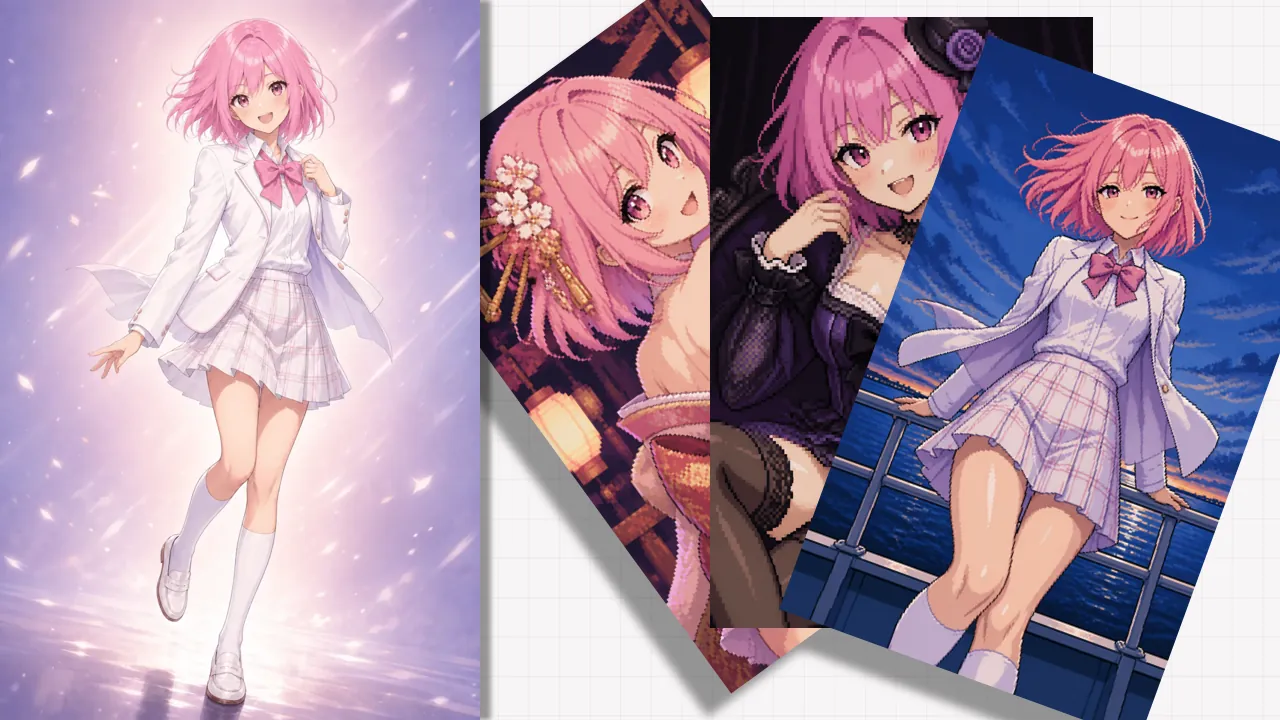
The quick version
To get a creative character draw in seconds:
- Upload your character to Pixelize.
- Select the Raffle preset from the dock.
- Choose Gender (Boy/Girl) to match your character.
- Set your toggles: Decide if you want an Outfit Change, With-Scene environment, or the glossy Allure style.
- Click Generate. If you want a different scene, just click generate again to "re-roll" the dice.
How Raffle preserves your character
The biggest concern when generating new scenes is losing the character's look. Raffle uses a built-in "Identity Lock" that focuses on three key areas:
- Face & Hair: It strictly follows the face shape, eye style, and hairstyle from your upload.
- Color Palette: It respects the hair and skin colors of your original character.
- Recognition: Even if the character changes into knight armor or a school uniform, they remain clearly recognizable as the same person.
Key decision toggles
Unlike other presets, Raffle hides standard background controls and replaces them with four simple dials:
Outfit (Keep vs. Change)
- Keep (Off): The AI tries to recreate the character's original clothes in the new scene.
- Change (On): The AI dresses the character in a new outfit that fits the drawn scenario (e.g., a swimsuit for a beach scene or a cloak for a fantasy setting).
Scene (Studio vs. With-Scene)
- Studio (Off): Draws the character against a simple, clean background with professional lighting. Best for focused character art.
- With-Scene (On): Places the character in a full, detailed environment. This is where the "raffle" variety shines, placing your character in varied locations and lighting.
Style (Normal vs. Allure)
- Normal: Standard high-quality pixel art aesthetic.
- Allure: Adds a "glossy" finish with lustrous highlights, stylized body lines, and a more polished, aesthetic appeal.
When to use Raffle (and when to switch)
Raffle is powerful, but it isn't for every task.
Use Raffle when:
- You want to see your OC (Original Character) in new outfits or settings.
- You are feeling stuck and need creative inspiration.
- You want a high-quality, "finished" look with minimal effort.
Switch to Redraw or Image to Image when:
- You need exact control: If you need the character to be doing one specific thing (e.g., "holding a green apple"), Raffle's randomness will frustrate you. Use Image to Image with a prompt instead.
- The subject isn't a character: Raffle is tuned for people. For landscapes or objects, use Scene or Redraw.
- You need a specific aspect ratio: While Raffle allows you to pick different aspect ratios, it performs best when the canvas matches your goal. If you need strict art direction over a wide banner's composition, use Redraw.
Next steps
Ready to see your character in a new light? Head to Pixelize and give the Raffle preset a spin. For more details on how other presets work, check out our full preset guide.