“Pixelate image online” and “image to pixel art” sound alike in a search box. They are not the same job. Classic pixelate keeps the photo’s composition and only makes it blocky—each cell averages or samples color so the picture looks like a mosaic. That is AniPixel’s free Pixelate tool: local in your browser, no sign-in, no credits. AI pixel art asks a model to redraw edges and color blocks; that path is Pixelize. The short map of both (plus hand-drawn editors) is AI pixel art vs pixelate.
Use this page when you want a mechanical blocky photo, a quick privacy chunk, or a retro mosaic look that still clearly is the same shot. Skip it when you want anime-style or portrait pixel art that no longer looks photographic.
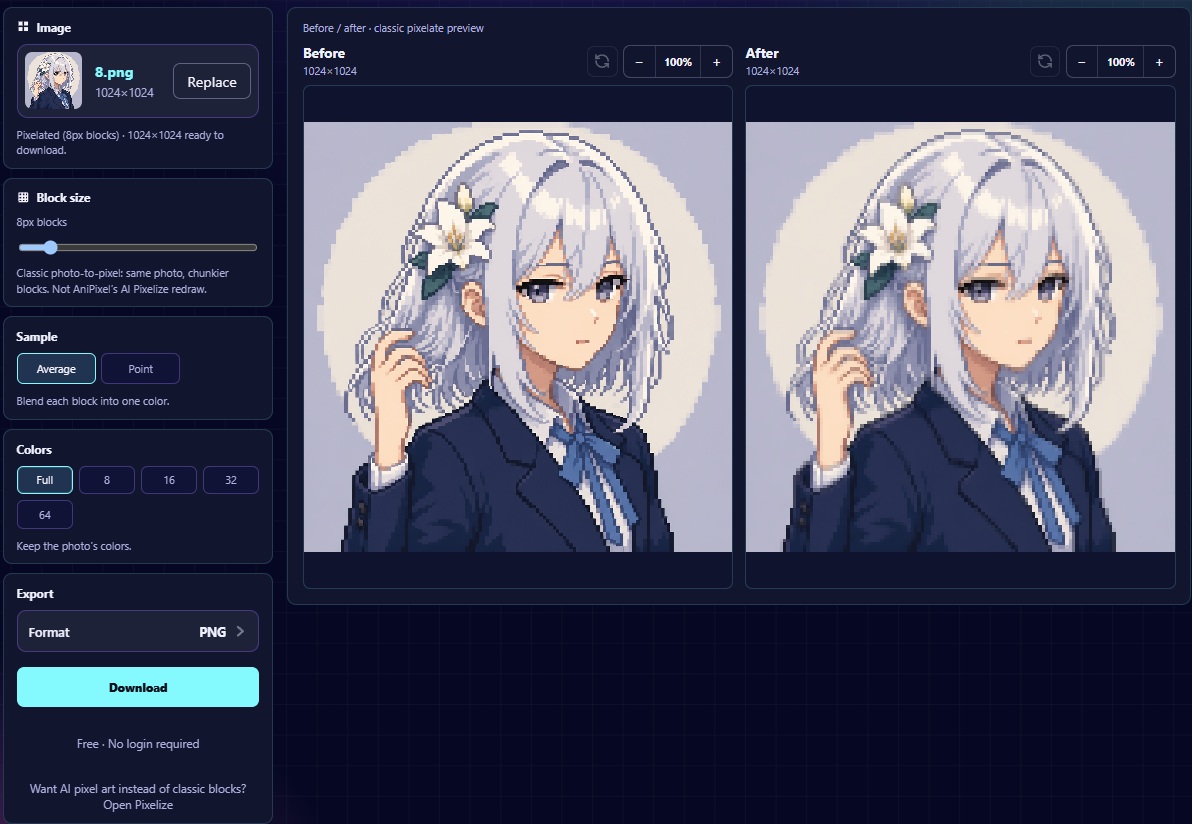
How to pixelate a photo
- Open Pixelate.
- Upload a JPG, PNG, or WEBP up to 10MB (or paste from the clipboard).
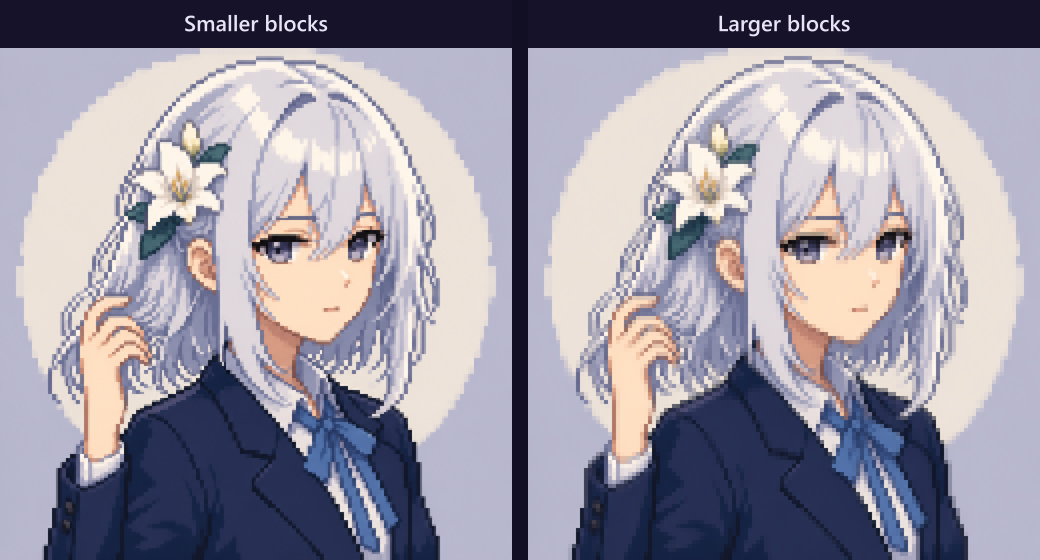
- Drag Block size until the look fits. 1px is effectively the original; larger blocks = chunkier pixels.
- Optionally set Sample (Average vs Point), limit Colors, and add Dither if banding shows when the palette is small.
- Check the before/after preview, then download. Processing stays on your device.
Is this the same as AI “image to pixel art”?
No. A mosaic filter never invents a new contour—it only coarsens the photo you already have. AniPixel Pixelize redraws the subject as pixel art, so silhouettes and colors can change between runs. Reach for Pixelate for blocky photos and privacy-style chunking; open Pixelize (see Getting started) when you want presets like Portrait, Chibi, Icon, or Icon Pack.
When Pixelate is enough
- Mechanical “blocky photo” effect for posts or mockups.
- Quick privacy-style chunk over a region (export and crop as needed).
- Same faces and layout, only coarser—useful before you decide whether an AI redraw is worth a credit.
Controls in plain language
- Block size — how large each mosaic cell is.
- Sample → Average — blend the cell into one color (smoother mosaic).
- Sample → Point — take one pixel per block (crisper, more “classic game” harshness).
- Colors — keep full photo color or limit the palette.
- Dither — softens banding when colors are limited; leave off if you want flat cells.
After a cutout you still want to mosaic, remove the background first. If you already have an AI result that only looks low-res, recover the true grid instead of running Pixelate on it.