The page covers controls owned by the chosen preset: what each control changes on screen and which default serves the first run. Shared sliders such as Colors, Quality, Background, Images, and Aspect live in Pixelize settings explained. Open Pixelize, choose a preset, then read the matching section below. AI redraws vary between runs.
Quick pick
| Preset | Own controls | Leave on default when |
|---|---|---|
| Redraw | Outfit, Atmosphere | The clothes, light, and mood of the upload already work |
| Image to Image | Model, Style, Prompt | A written Prompt guides the run; Model and Style start from defaults |
| Chibi | Style, Sprite Sheet | A single cute remake serves the goal |
| Side | Proportions, Battle kit | A plain new angle serves the goal |
| Portrait | Front Face, Headgear | The head-focused framing of the upload already works |
| Scene | Time of day, Weather | The place in the upload already reads clearly |
| Raffle | Character, Preference | Character matches the upload; Preference starts from defaults |
Chibi, Side, and Portrait lock output to 1:1. Redraw, Image to Image, Scene, and Raffle offer aspect choices beyond square. Aspect details live in Pixelize settings explained.
Redraw — preset controls
Redraw redraws from the upload with composition, pose, and subject retained.
Preset controls
| Control | Default | What changing it does |
|---|---|---|
| Outfit | Keep original | Keep original retains the uploaded clothes in pixels. A named outfit retains face, hair, body, pose, and composition, and changes clothing to that look. |
| Atmosphere | Keep original | Keep original retains the light and air of the upload. A named atmosphere retains pose and composition, and changes lighting and air to that mood. |
If blur covers small facial features, switch to Portrait for a head-focused frame.
Image to Image — preset controls
In Image to Image, a written Prompt bends the upload toward a described change.
Preset controls
| Control | Default | What changing it does |
|---|---|---|
| Model | GPT-image 2.5 Flare Low | Detail grows with model tier. See the Generate button for credits. |
| Style | Pixel | Pixel renders pixel art with crisp color blocks. Native renders the model default look for everyday use. |
| Prompt | Empty (required) | Prompt serves as the core input of the preset. A written direction changes the outfit, pose, or setting. An empty Prompt leaves the run guided by the upload alone. |
If smeared features spread across the output, switch to Redraw for closer adherence to the upload.
Chibi — preset controls
Cute proportion defines Chibi: the upload returns as a small-bodied, big-headed remake of the same character. Output from Chibi stays square at 1:1.
Preset controls
| Control | Default | What changing it does |
|---|---|---|
| Style | Standard | Standard retains the base cute remake. Super SD, Anime chibi, Sticker, Soft, Minimal, 16-bit JRPG, and Smash change the chibi flavor. Rounder, simpler flavors suit stickers and tiny tiles. |
| Sprite Sheet | Off | On produces a multi-cell sheet of the same chibi character, such as idle and walk poses. Choose a shortcut template or tick individual poses. Generate asks for at least one pose. |
If the remake keeps the cute look but loses the character, switch to Redraw for wardrobe changes on a faithful base.
Side — preset controls
A right-facing three-quarter view comes from Side, redrawn from the same character. Side locks output to 1:1.
Preset controls
| Control | Default | What changing it does |
|---|---|---|
| Proportions | Standard | Standard retains the default game-figure height. Source proportions follows the build of the upload. Head-count options run from shorter builds around 3 heads up to taller adult builds around 7–8 heads. |
| Battle kit | Keep original | Keep original retains the stance from the upload. A named kit adds that weapon with a matching stance in the same right-facing view. |
If logos land on the wrong side, switch to Redraw for a straight-on frame of the upload.
Portrait — preset controls
For head-focused framing, Portrait shows a half-body or closer view of the same character. Square output at 1:1 comes with Portrait.
Preset controls
| Control | Default | What changing it does |
|---|---|---|
| Front Face | Off | On nudges the pose toward a straight-on facing view. Straight-on facing helps when the upload shows a turned head. |
| Headgear | Keep original | Keep original retains the head as uploaded. A named item adds that accessory on the head only, with face, hairstyle, clothes, and pose retained. |
If the face arrives as blur, switch to Redraw and frame the upload around the head and shoulders first.
Scene — preset controls
Rooms, streets, and landscapes take center stage in Scene, drawn from the upload. The backdrop serves as the subject there, so Time of day and Weather carry the panel.
Preset controls
| Control | Default | What changing it does |
|---|---|---|
| Time of day | Keep original | Keep original retains the light and sky of the upload. A named time changes light and sky only, such as morning softness, golden hour, neon night, or starfall. |
| Weather | Keep original | Keep original retains the weather and air of the upload. A named weather changes weather and air only, such as rain, snow, mist, falling petals, or festival sparks. |
If the face arrives as smear, switch to Portrait and frame the upload around the head and shoulders first.
Raffle — preset controls
Each run of Raffle draws the same character against a fresh backdrop for curated variety. The five rows after Character live inside Preference. Raffle offers aspect choices beyond square.
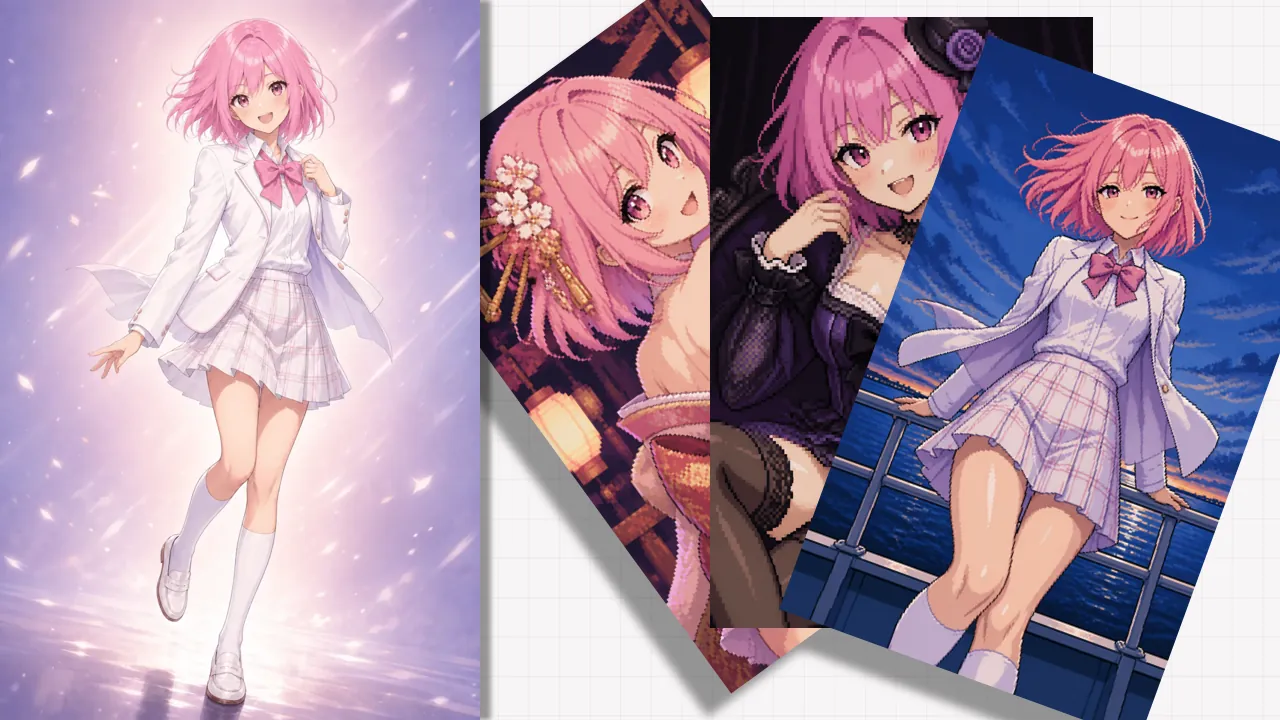
Preset controls
| Control | Default | What changing it does |
|---|---|---|
| Character | Girl | Girl or Boy follows the upload. Match Character to the upload first. |
| Set | Picks | Picks stays steadier across draws. Random widens variety across draws. |
| Outfit | Keep original | Keep original retains current clothes. Change outfit replaces clothes with ones fitting the drawn scene. |
| Style | Normal | Normal favors an everyday look. Allure favors a striking look with glossier lighting. |
| Scene | No scene | No scene redraws the figure only. With scene redraws the setting too. |
| Art | Pixel | Pixel produces pixel art. Illustration produces illustration. |
If re-rolls show a different outfit on every draw, switch to Image to Image with a written direction describing the fixed idea.
Next steps
Tune shared controls in Pixelize settings explained. For cleaner inputs, read better source images. For the full upload-to-download flow, follow How to turn an image into pixel art with AniPixel.